![Favicon - White-1.png]](https://knowledge.vested.marketing/hs-fs/hubfs/Knowledge%20Base/Favicon%20-%20White-1.png?height=40&name=Favicon%20-%20White-1.png)
Vested's Interactive Horizontal Timeline Module is designed to work right out of the box. Follow this simple guide to get started.
Installation & Setup
Step 1: Download from HubSpot Asset Marketplace
Once you've downloaded the Interactive Horizontal Timeline Module from the HubSpot Asset Marketplace, you're ready to add it to your pages.
Step 2: Access Your Page Editor
From your HubSpot portal homepage, navigate to:
- Website Pages, Landing Pages, or Blog
- Click 'Create' at the top of the page to start a new page
- Or select an existing page with drag-and-drop editing capabilities
Step 3: Add the Module to Your Page
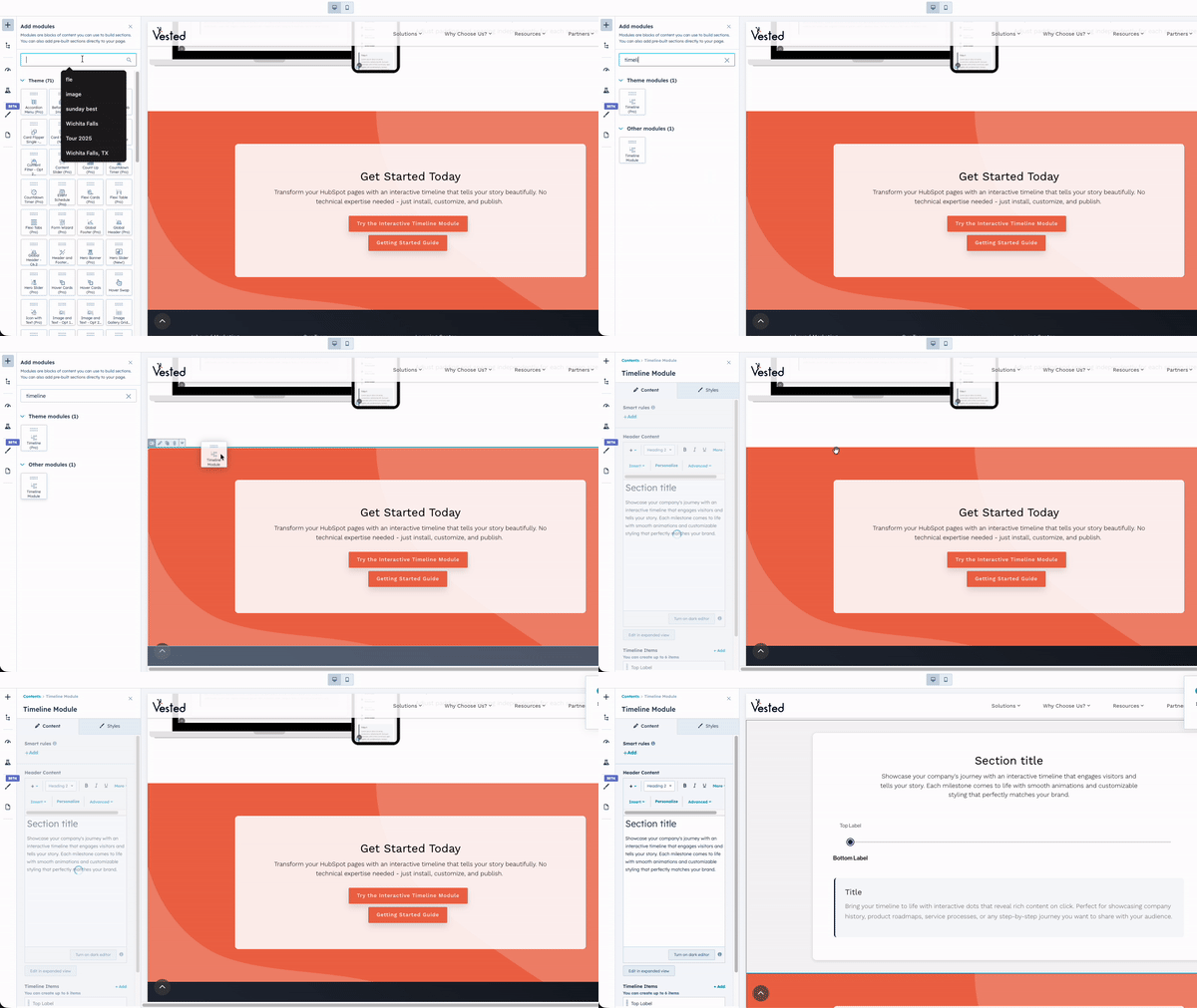
- In the content editor on the left side, click the 'Add' tab
- Search for 'Interactive Horizontal Timeline Module'
- Drag and drop the module to your desired position on the page
- Note: The module will appear in the 'All Modules' section since it's a custom module, not part of your theme
Step 4: Configure Your Timeline Content
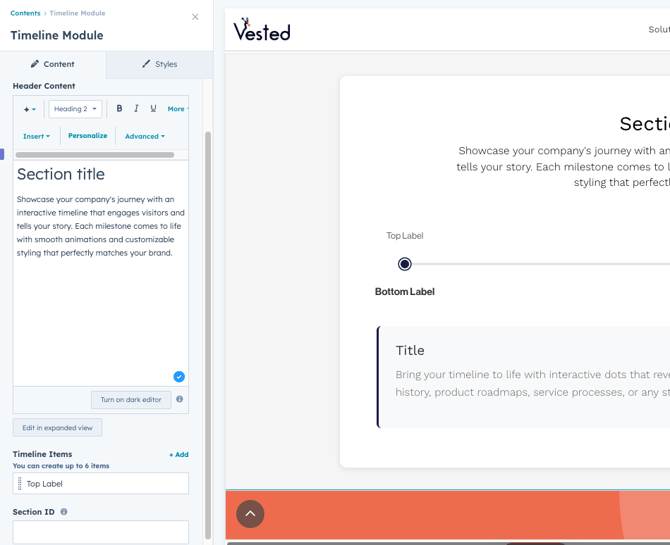
Click on the module to access the 'Content' tab where you can:
- Timeline Header: Add your main title and description
- Timeline Items: Click to add multiple timeline phases/milestones
- Top Label: Phase name or category
- Bottom Label: Phase description or subtitle
- Content: Detailed information that appears when users click the dot (supports rich text formatting)
Step 5: Customize the Style
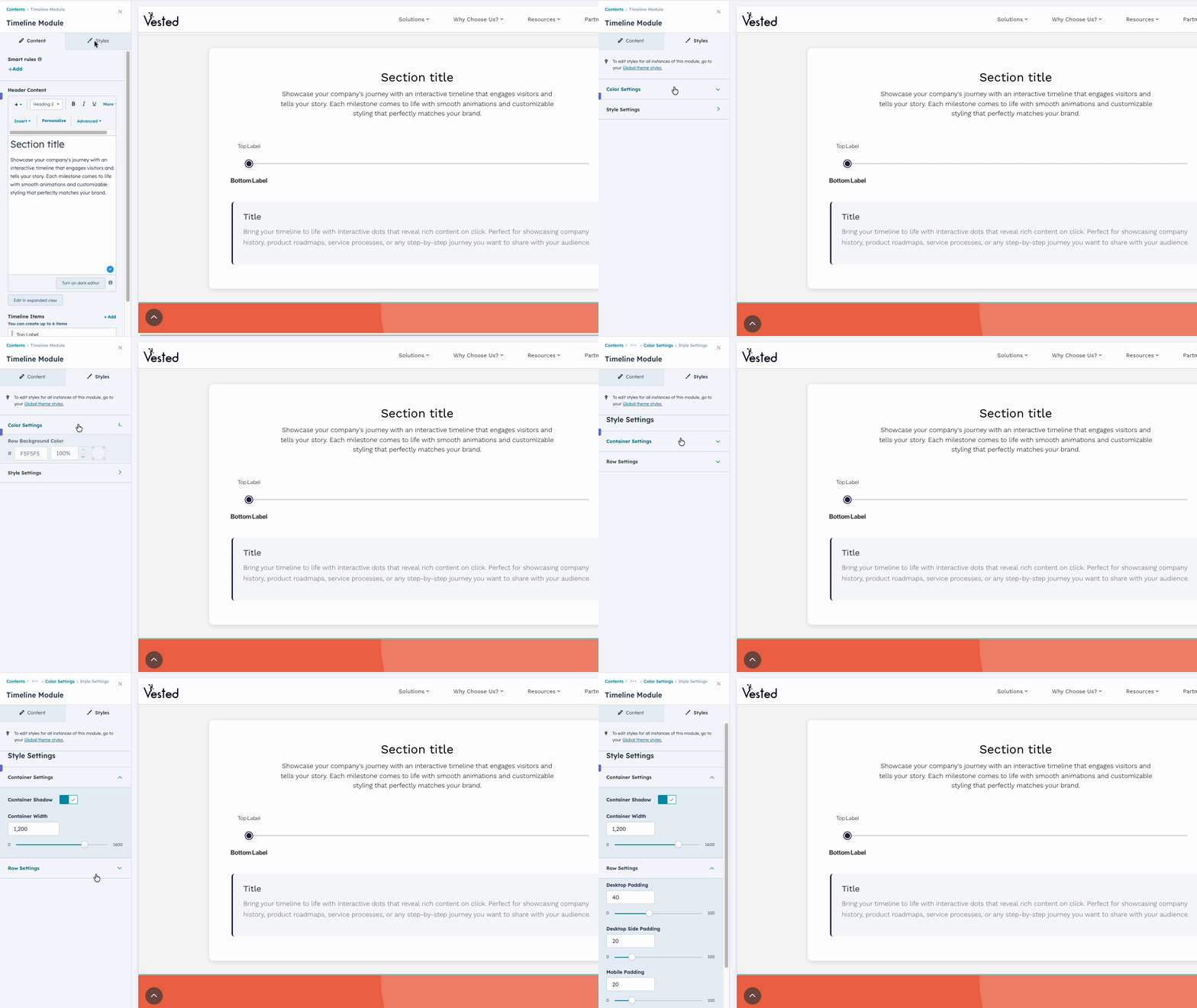
Switch to the 'Style' tab to personalize your timeline:
Style Settings:
- Container max width (desktop only)
- Enable/disable container shadow
- Desktop padding (top/bottom and left/right)
- Mobile padding (top/bottom and left/right)
Color Settings:
- Background color for the timeline section
- Progress line color
Per-Item Customization: For each timeline item, you can set:
- Dot color
- Content border color
- Content background color
Step 6: Advanced Options
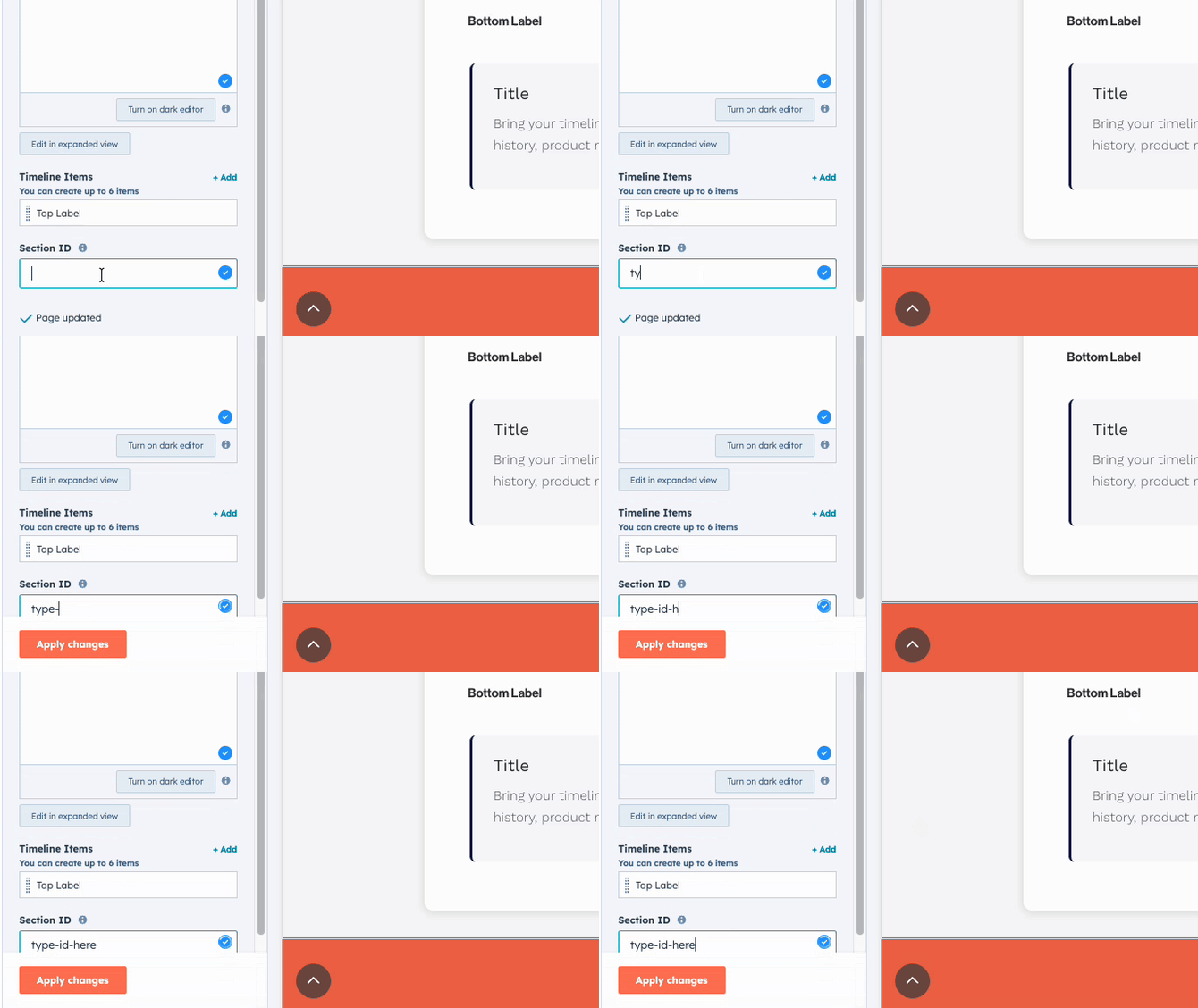
- Section ID: Add a custom anchor ID for smooth scrolling navigation
Step 7: Save and Publish
- Click 'Update' to save your module settings
- Click 'Preview' in the upper-right corner to see how it looks
- When satisfied, click 'Publish' to make it live!